How to Build a PDF Storyboard Generator Using JavaScript
本文由「How to Build a PDF Storyboard Generator Using JavaScript」的公开内容整理,完整内容与后续更新请点击文末链接阅读原文。
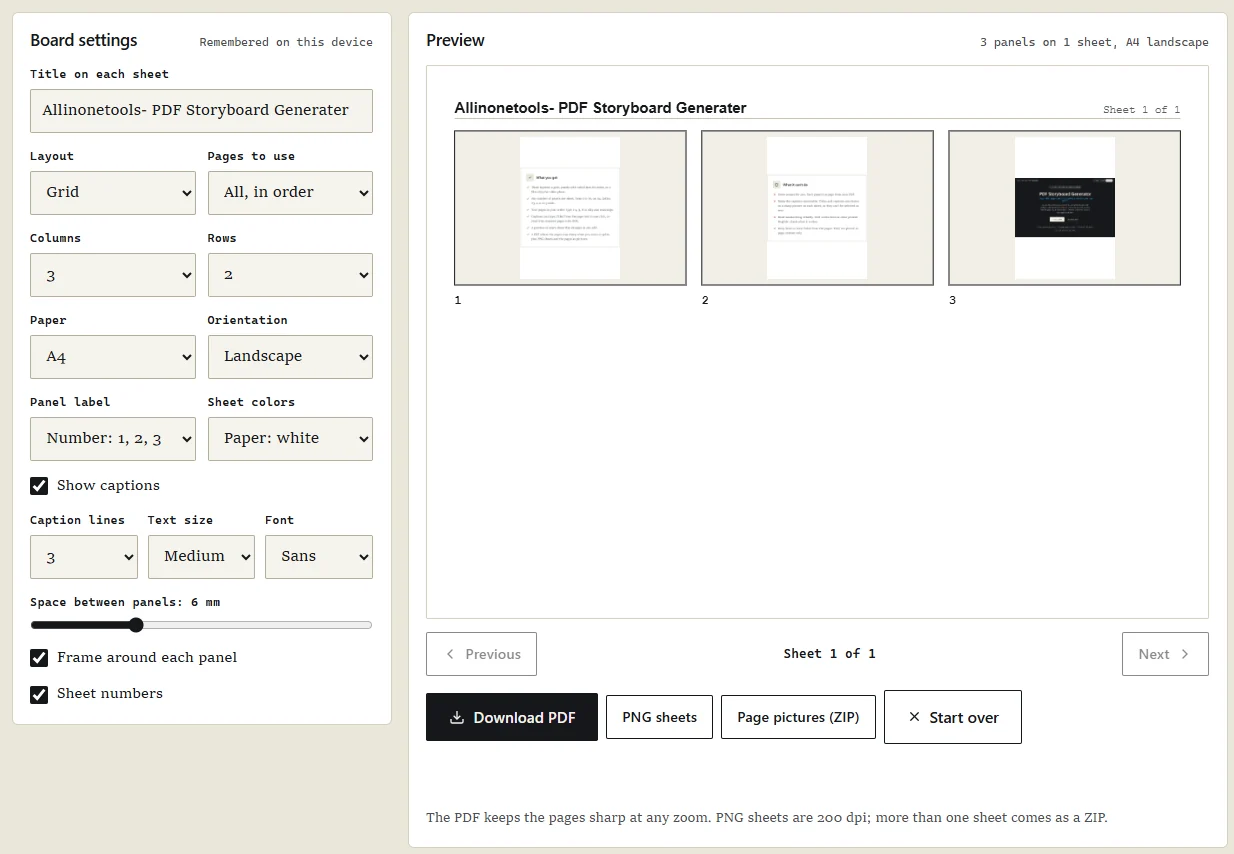
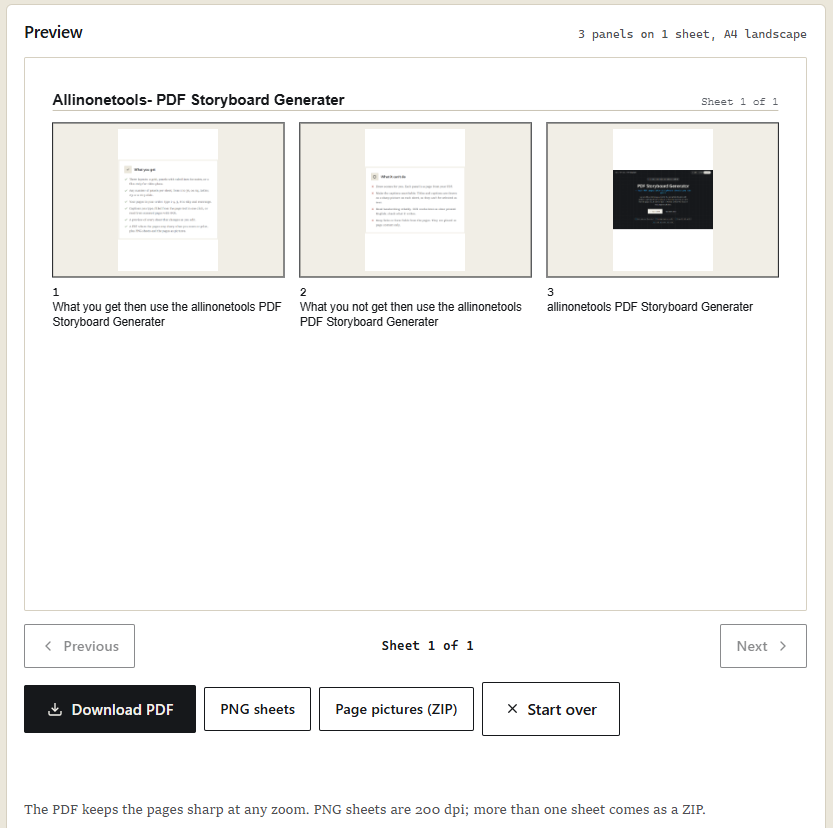
Bhavin Sheth PDF files are commonly used to share presentations, scripts, reports, lesson materials, comic pages, and other visual documents. But reviewing a long PDF page by page can take time, especially when someone needs to understand the overall sequence of scenes, slides, or visual content. A storyboard provides a more organized way to review this information. Instead of opening every page individually, users can arrange selected PDF pages into a single sheet containing multiple panels. Each panel can include a page number, a caption, and a visual preview of the original page. In this tutorial, we'll explore how to build a browser-based PDF Storyboard Generator using JavaScript, PDF.js, and PDF-lib. The application takes pages from an existing PDF and arranges them into printable storyboard sheets. Users can choose different layouts, select the pages they want to include, add captions, customize the appearance, preview the result, and download the finished storyboard. The application runs directly in the browser. The uploaded PDF is processed locally rather than uploaded to the website's server. We'll examine the implementation step by step, including PDF rendering, page selection, caption handling, layout calculations, preview generation, and file export. What We'll Cover: What Is a PDF Storyboard Generator?
Main Features of the Application Understanding the Browser-Based Workflow Project Setup Libraries Used Preparing the HTML Workspace Selecting the Main DOM Elements Defining Important Configuration Values Understanding the Application State Uploading a PDF Loading the PDF with PDF.js Measuring PDF Pages Rendering PDF Pages on Canvas Reusing Rendered Page Previews Reading Text from PDF Pages Filling Empty Captions Automatically Updating the Preview Choosing the Storyboard Layout Controlling Rows, Columns, and Paper Size Selecting PDF Pages and Their Order Adding Panel Labels Drawing the Storyboard Sheet Updating the Live Preview Adjusting Caption Appearance Navigating Between Storyboard Sheets Reading Scanned Pages with OCR Generating the Final Storyboard PDF Downloading PNG Storyboard Sheets Downloading Individual Page Pictures Performance and Important Considerations Demo: PDF Storyboard Generator Conclusion What Is a PDF Storyboard Generator?
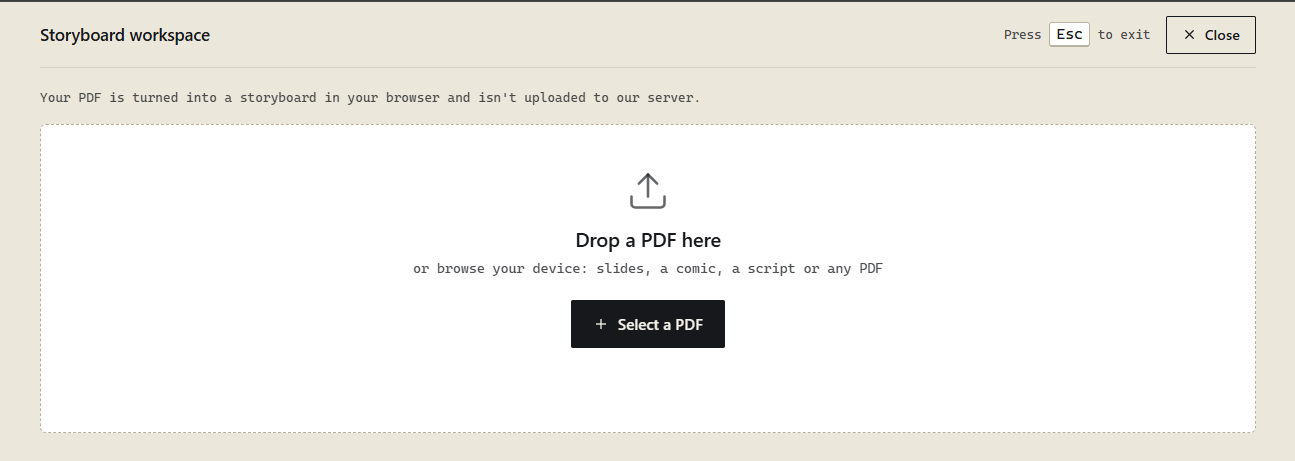
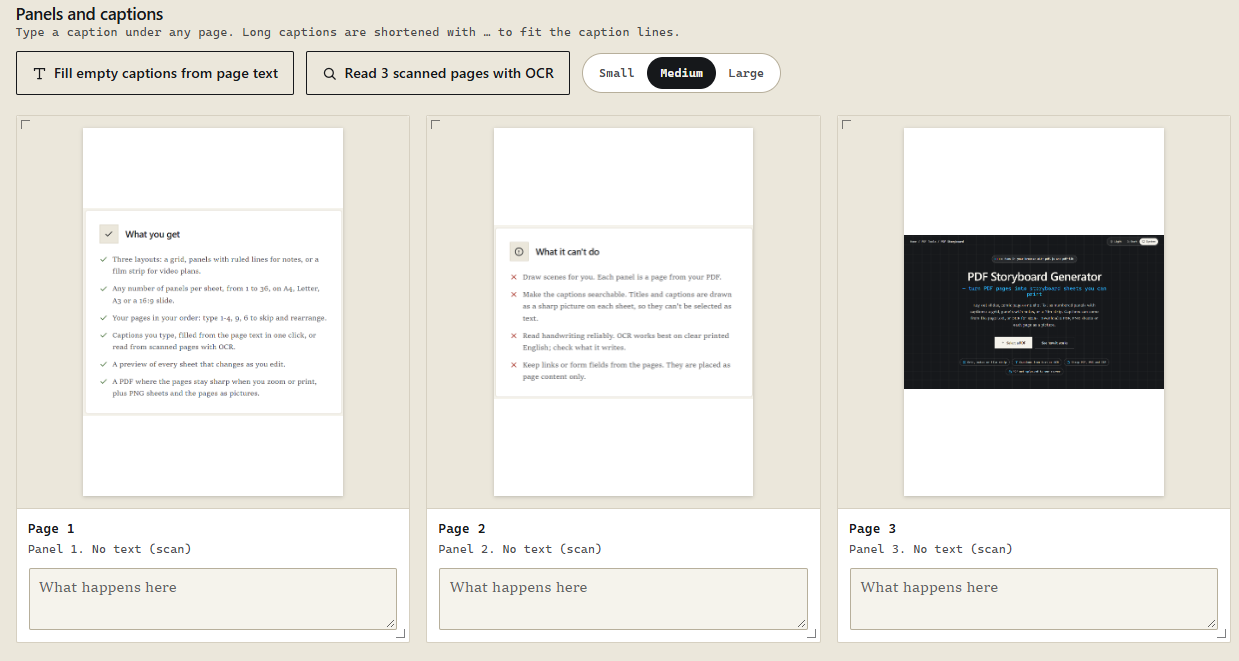
A PDF Storyboard Generator converts selected pages from an existing PDF into a structured visual sheet. For example, imagine that you have a PDF containing 20 presentation slides. Instead of sharing all 20 slides separately, you can arrange them into a storyboard containing three columns and two rows per sheet. Each panel displays a scaled version of its original PDF page. You can also add a number or label and write a short description underneath. The same approach can be useful for: Reviewing presentation slides. Organizing comic pages. Planning video scenes. Preparing visual scripts. Reviewing scanned documents. Creating printable teaching materials. Organizing page sequences for creative projects. The application doesn't create new scenes or draw illustrations. It arranges existing PDF pages into a storyboard layout. Main Features of the Application Before writing the code, let's understand the features we're going to implement. 1. PDF Upload Users can select a PDF from their device or drag and drop it into the upload area. 2. Multiple Storyboard Layouts The application supports three layouts: Grid: Arranges pages in rows and columns. Panels with notes: Provides space for written notes alongside the page panels. Film strip: Arranges pages in a film-strip style. 3. Page Selection and Ordering Users can choose which PDF pages should appear in the storyboard. They can also specify a custom order rather than following the original PDF sequence. 4. Captions Users can type captions manually, fill empty captions using extracted PDF page text, or use OCR to read text from scanned pages. 5. Customization Users can customize the paper size, orientation, number of columns and rows, p

本文基于 freeCodeCamp 的公开内容,由 AI 辅助整理改写后发布。
原标题:How to Build a PDF Storyboard Generator Using JavaScript
阅读原文